← All chapters
UpfitTrack Training · Chapter 1

Signing Up

How you go from the upfittrack.com website to your own shop in the app. You pick a plan, fill in one form, enter a card, and get an email to set your password. Your first upfit job is free*. Plan on about ten minutes.

For: the shop ownerOn: upfittrack.com, then the iPhone app or the web app8 steps
1

Pick your plan

Before you sign up, it helps to know what you'll pay and what's included. The plans page lays it all out.

Go toupfittrack.com›Start Your Free Upfit

The big Start Your Free Upfit button on the upfittrack.com home page takes you to the plans page. You can also click Plans in the site's menu.

There is one plan for upfit shops: UpfitTrack Base, $75 a month. It covers one location, one admin and the full app.

You don't pick features. Every shop gets the same app. You only choose how many people use it.

You'll see the word seat a lot. A seat is one person's place in your shop: each admin and each tech you pay for. You get one admin seat (yours) with the base price.

How it's priced
UpfitTrack Base$75 a month. One location, and your first admin is included.
Each added admin$40 a month. Admins get the office side of the app: people, settings and billing.
Each tech$20 a month. Techs get the bay side: builds, wiring, photos and time.
Each fleet vehicle$5 a month, no minimum. This is the Fleet plan, for agencies that run the cars, not for shops. It isn't sold at checkout: the button says Contact Us to Set Up and opens an email.
Each extra location$75 a month. Only if you run more than one shop. You choose it on the signup form.
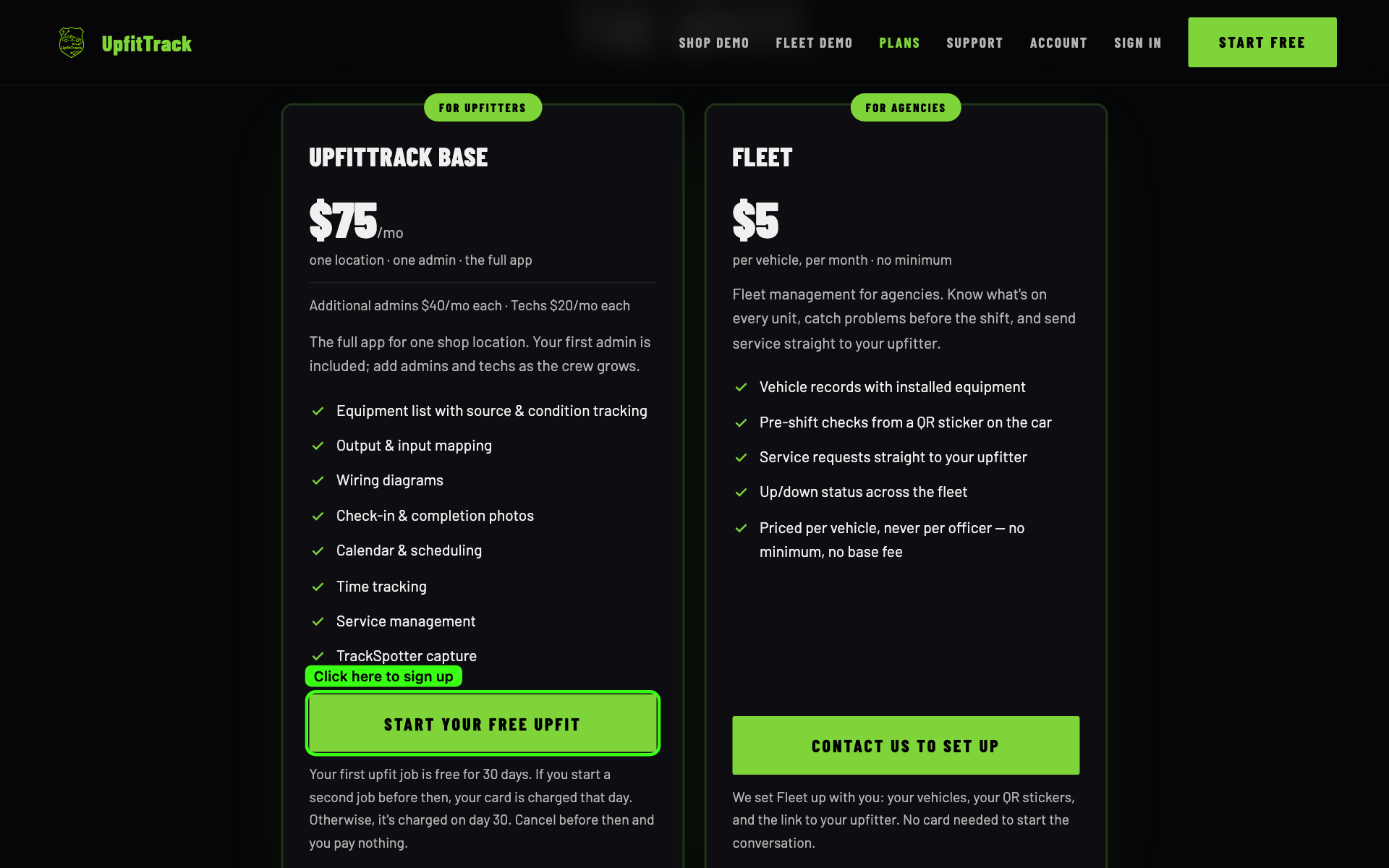
The plans page, with the site's menu bar across the top. On the left, the UpfitTrack Base card, For Upfitters: $75 a month, one location, one admin, the full app, a list of what's included, and the Start your free upfit button ringed in green with the label Click here to sign up. On the right, the Fleet card, For Agencies: $5 per vehicle per month, with a Contact Us to Set Up button.
The UpfitTrack Base card. Click Start your free upfit to go to the signup form.
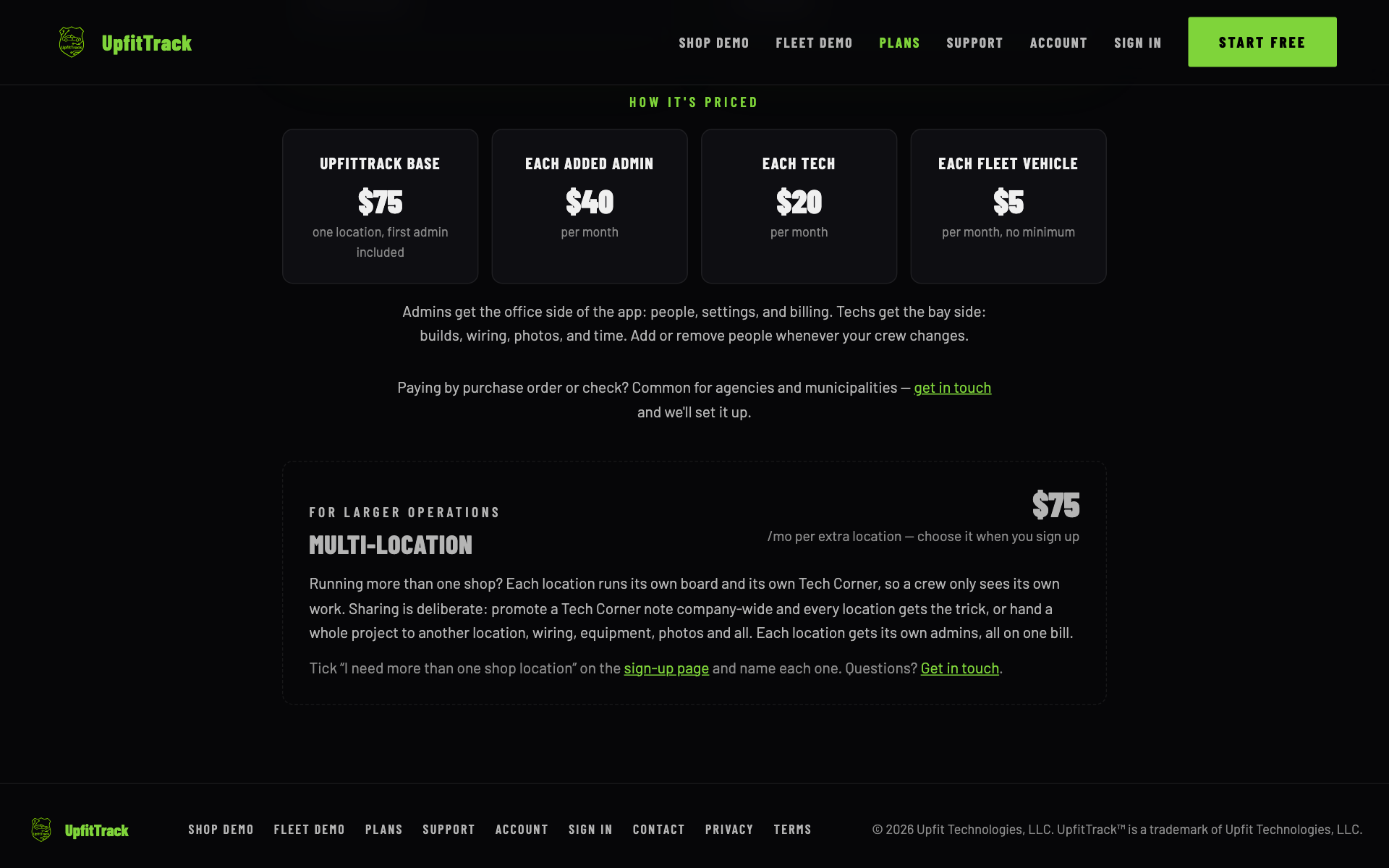
The How It's Priced section: four boxes in a row, UpfitTrack Base $75, each added admin $40, each tech $20, each fleet vehicle $5. Under them, a line on what admins and techs get, a line on paying by purchase order or check, then the Multi-Location box at $75 a month per extra location, and the site's footer.
"How It's Priced" further down the same page.
Paying by purchase order or check?The plans page has a get in touch link for that. It opens an email to tech@upfittrack.com.
2

Fill in the signup form

This one form is everything we need to build your shop: its name, who you are, and how big your crew is. You don't set a password here. That comes by email after you pay.
Go toupfittrack.com/start›Set Up Your Shop
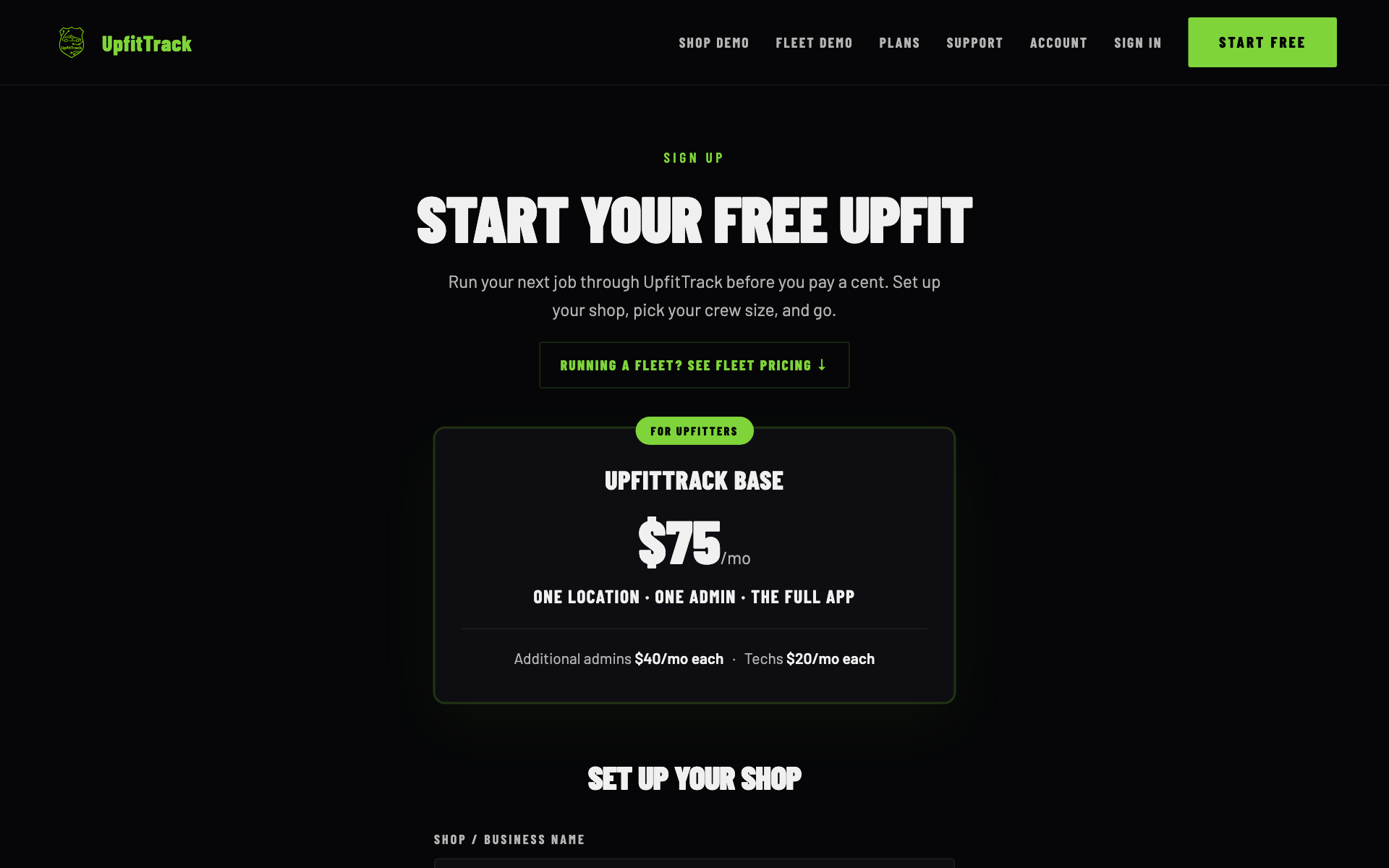
The top of the signup page, under the site's menu bar: Sign Up, Start Your Free Upfit, a short line about running your next job before you pay, a Running a fleet? See fleet pricing link, the UpfitTrack Base card, and the Set Up Your Shop heading with the first field below it.
The signup page opens with the plan you're buying. The form starts under Set Up Your Shop.

Who you are

Shop / Business NameRequiredYour shop's name. It becomes the name of your shop in the app and on your welcome email.
Your NameRequiredFirst and last name. It's saved as the name on your login.
Email AddressRequiredThis becomes your login. Use one that has never had an UpfitTrack login (see Step 8).
PhoneOptional. Saved as your shop's contact phone.
Did a shop refer you? Enter their code.Optional. If another shop sent you, type their code. When the code is found, the page shows a line like "Shop name referred you to UpfitTrack." If not, it says "We couldn't find that code."
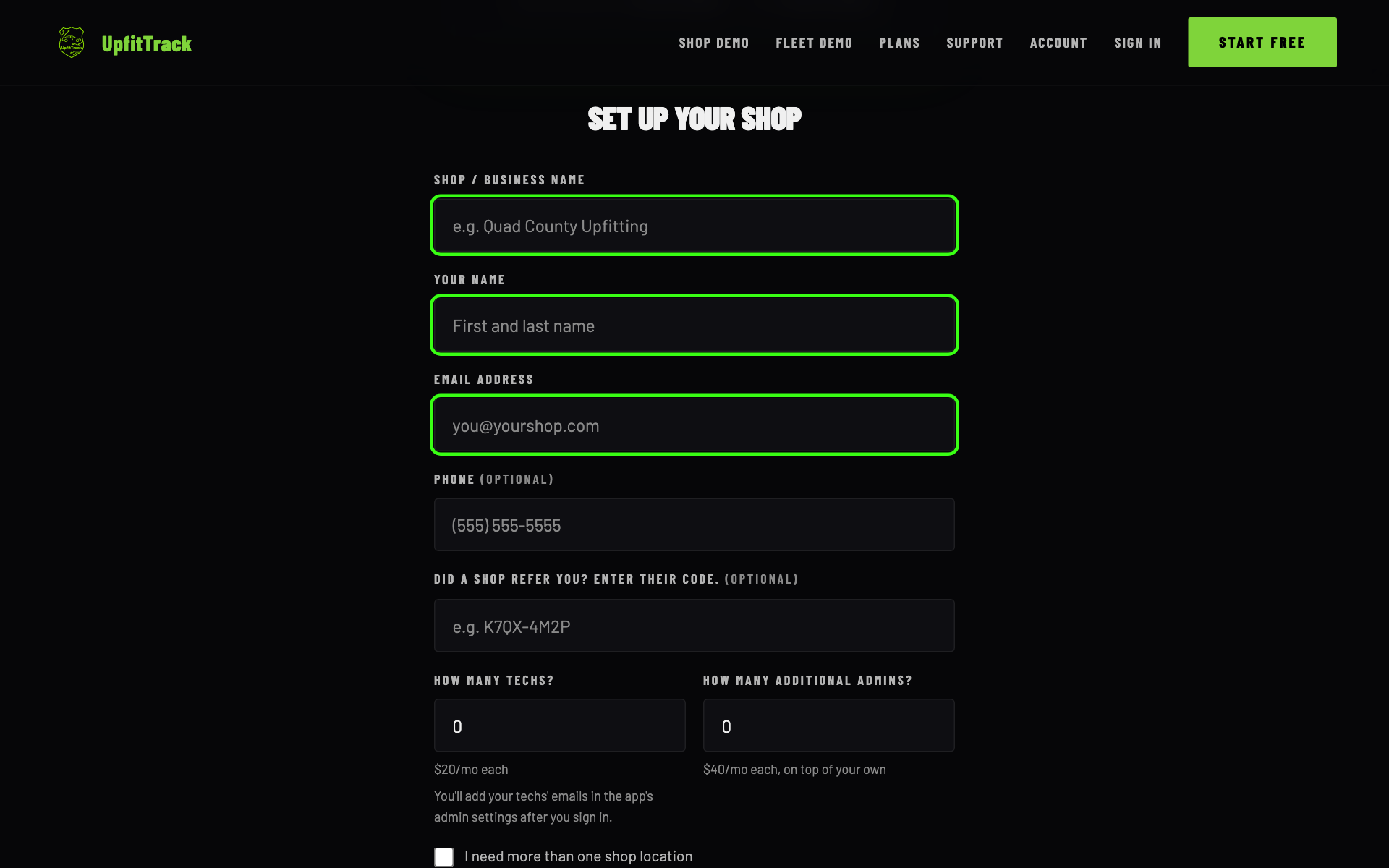
The Set Up Your Shop form. Shop / Business Name, Your Name and Email Address are ringed in green. Below them, Phone and the referral code are marked optional, then the How Many Techs and How Many Additional Admins boxes, both at 0.
Ringed: the three fields you must fill in. Phone and the referral code say (optional).

How big is your crew

How Many Techs?0 to 50. $20 a month each. You don't type your techs' emails here. You add them in the app's admin settings after you sign in (Chapter 2).
How Many Additional Admins?0 to 10. $40 a month each, on top of your own admin seat.

Both start at 0. The total at the bottom of the form changes as you type.
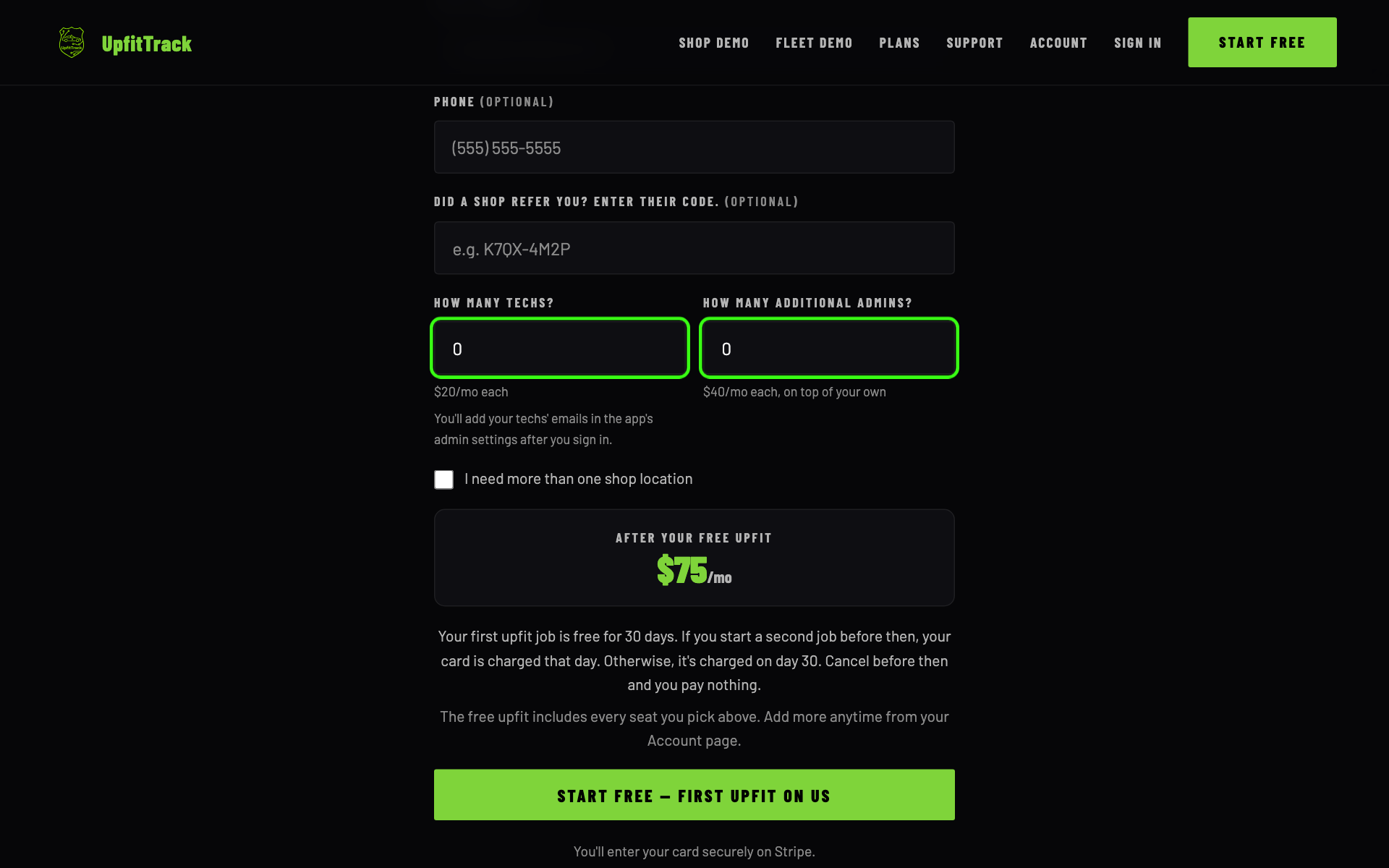
Phone and the referral code at the top. Below them the crew size boxes ringed: How Many Techs and How Many Additional Admins, both at 0, with the price under each. Then the location checkbox, the total of $75 a month after your free upfit, the free upfit terms and the Start free, first upfit on us button.
Crew size. With both at 0 the total is $75 a month.

Your extra admins

For each additional admin, the form adds a box for that person's Name and Email. Type them in now and we make their login for you (Step 6).

Don't know who it'll be yet? Tick I'll add this admin later. You still pay for the seat. The form tells you to contact UpfitTrack to add that person when you're ready.
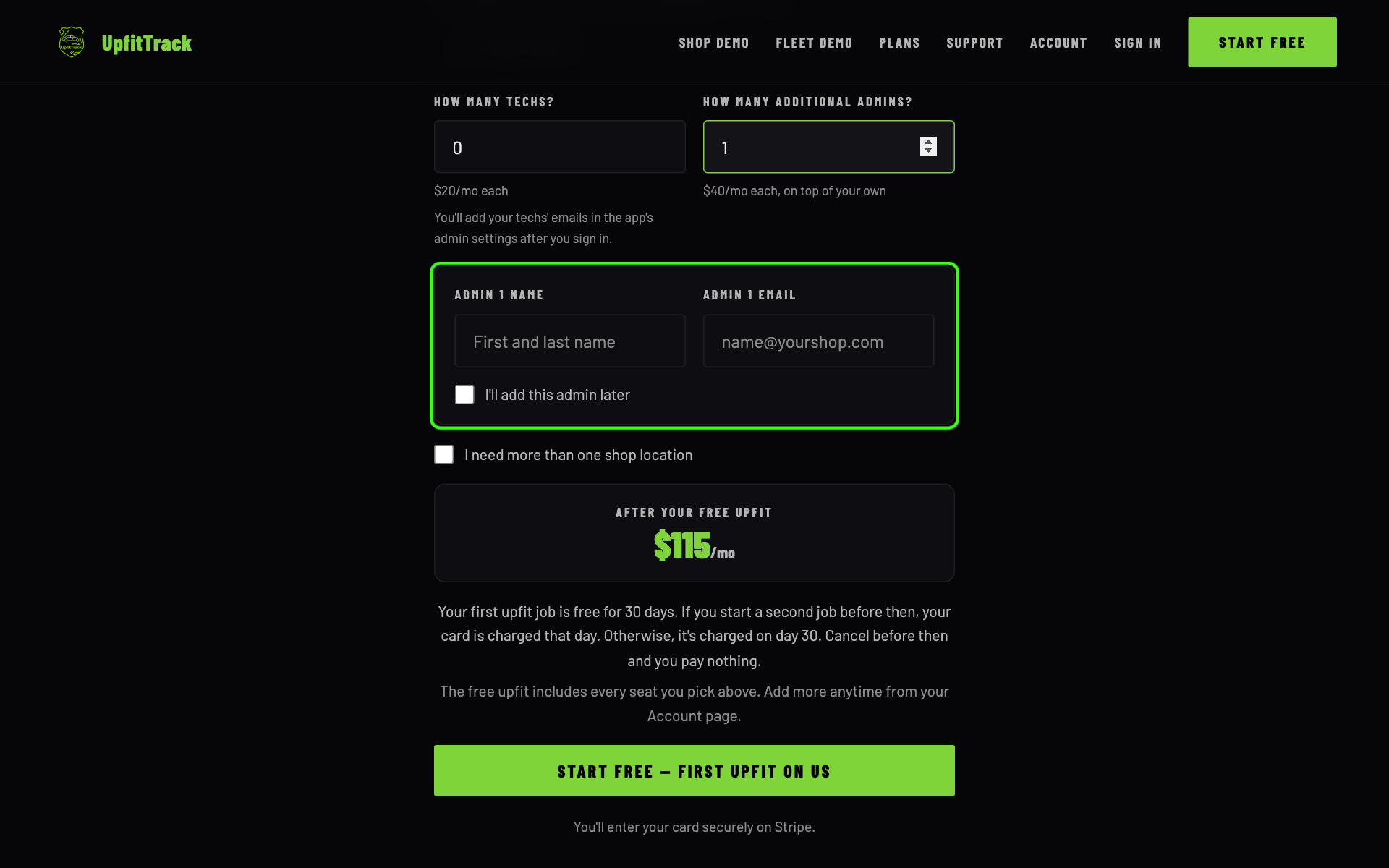
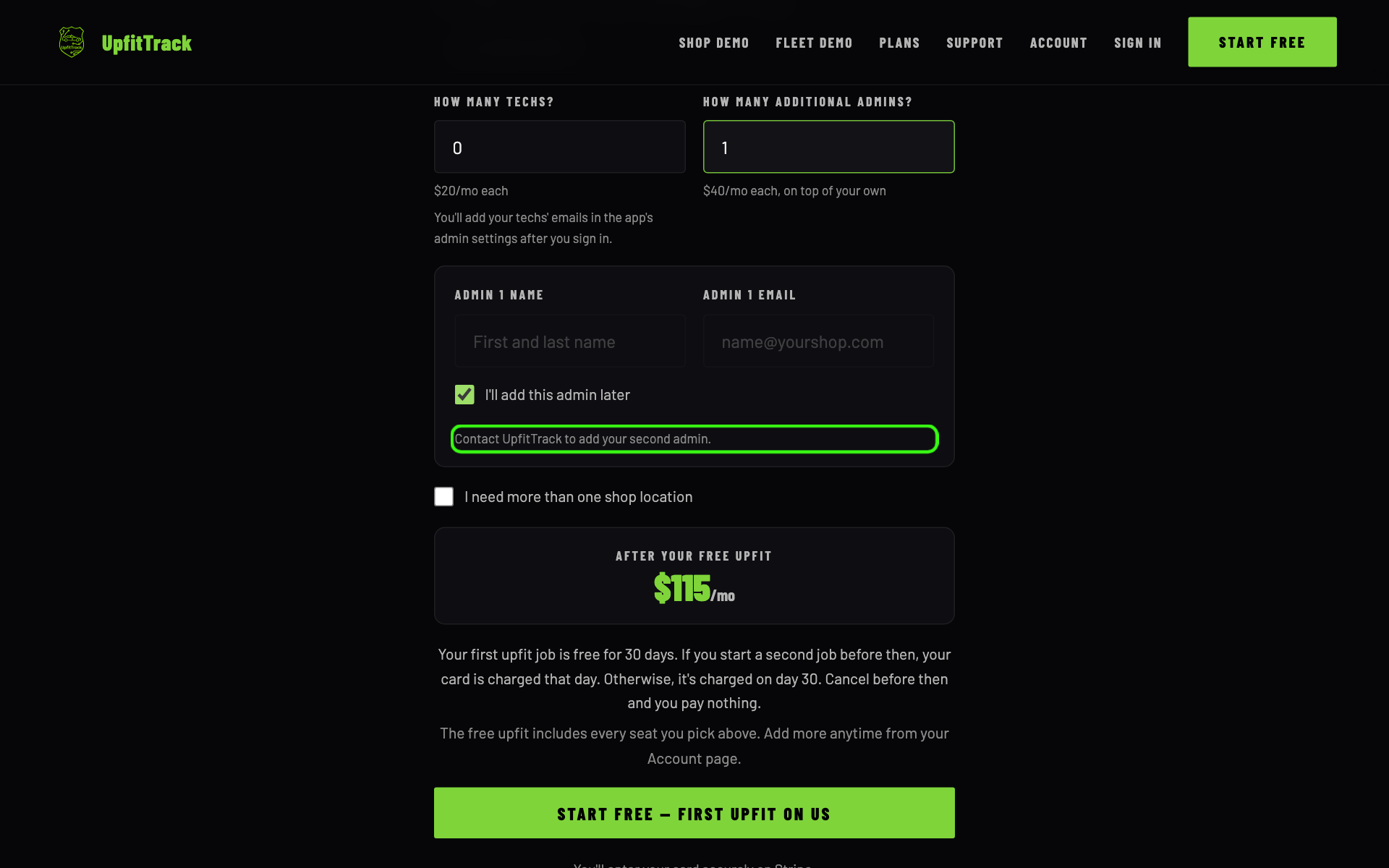
Additional admins set to 1. A ringed box appears with Admin 1 Name, Admin 1 Email and a checkbox, I'll add this admin later. Below it, the location checkbox, the total of $115 a month, the free upfit terms and the button.
One extra admin: a name and email box appear, and the total goes to $115.
The same box with I'll add this admin later ticked. The name and email boxes are greyed out and a ringed line reads: Contact UpfitTrack to add your second admin. The total still reads $115 a month.
Ticked "I'll add this admin later": the boxes go grey and the form says who to contact.
Each admin needs their own emailAn extra admin can't use the email you signed up with, and two extra admins can't share one. The form stops and tells you if they do.

More than one location (only if you need it)

Tick I need more than one shop location to add extra locations at $75 a month each, up to 10. Give each one a name. Your main shop is already included, so don't name an extra one "main".
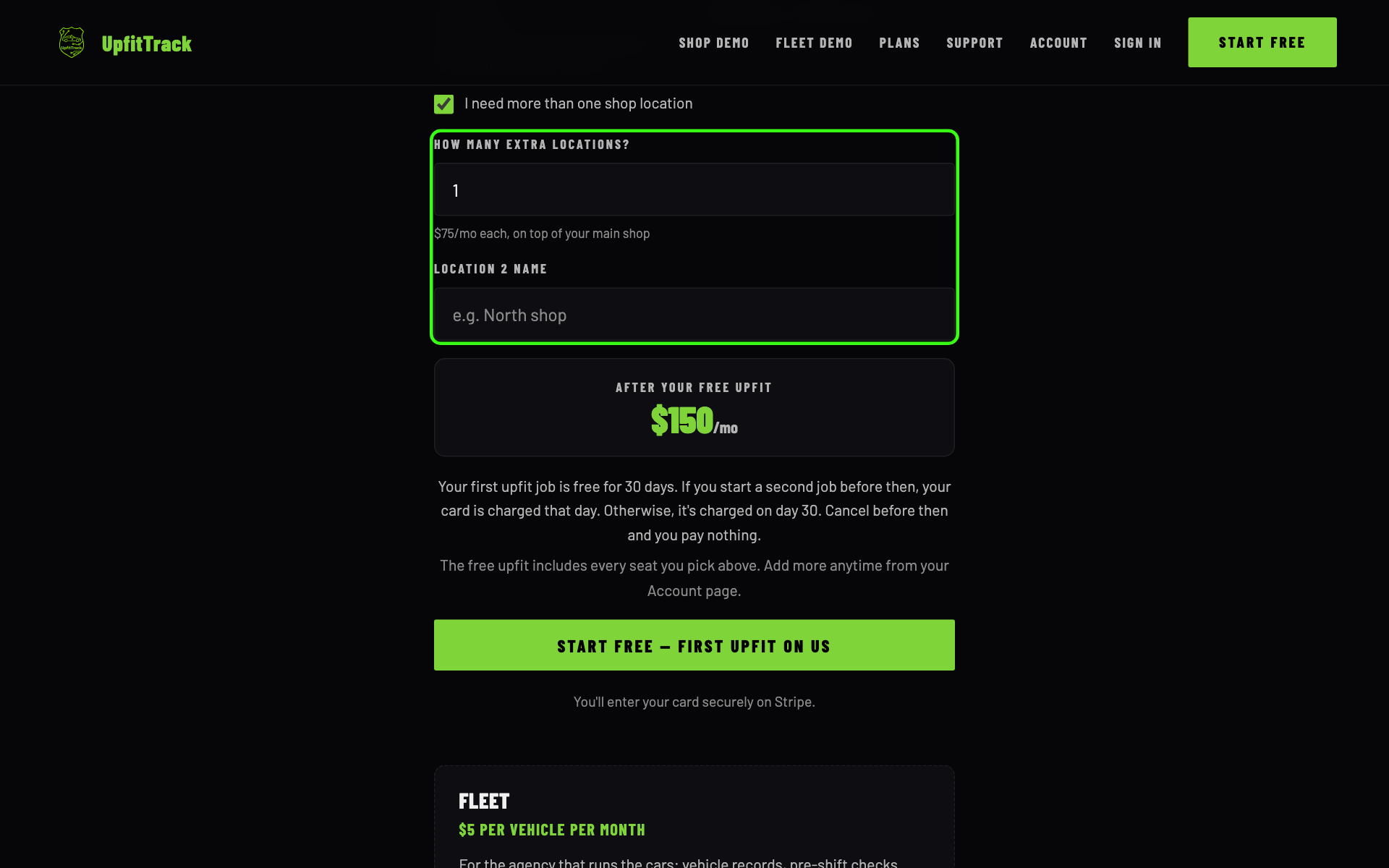
The location checkbox ticked. A ringed box shows How many extra locations set to 1, $75 a month each, and a Location 2 name box. Below it the total reads $150 a month, then the free upfit terms, the button, and the top of the Fleet box.
One extra location adds a name box and $75 to the total.

The total and the button

The box marked After your free upfit shows what you'll pay each month once the free upfit* ends. Under it, the page explains the free upfit (Step 3).

When you're ready, click Start free — first upfit on us. The button says One moment... while the card step loads.
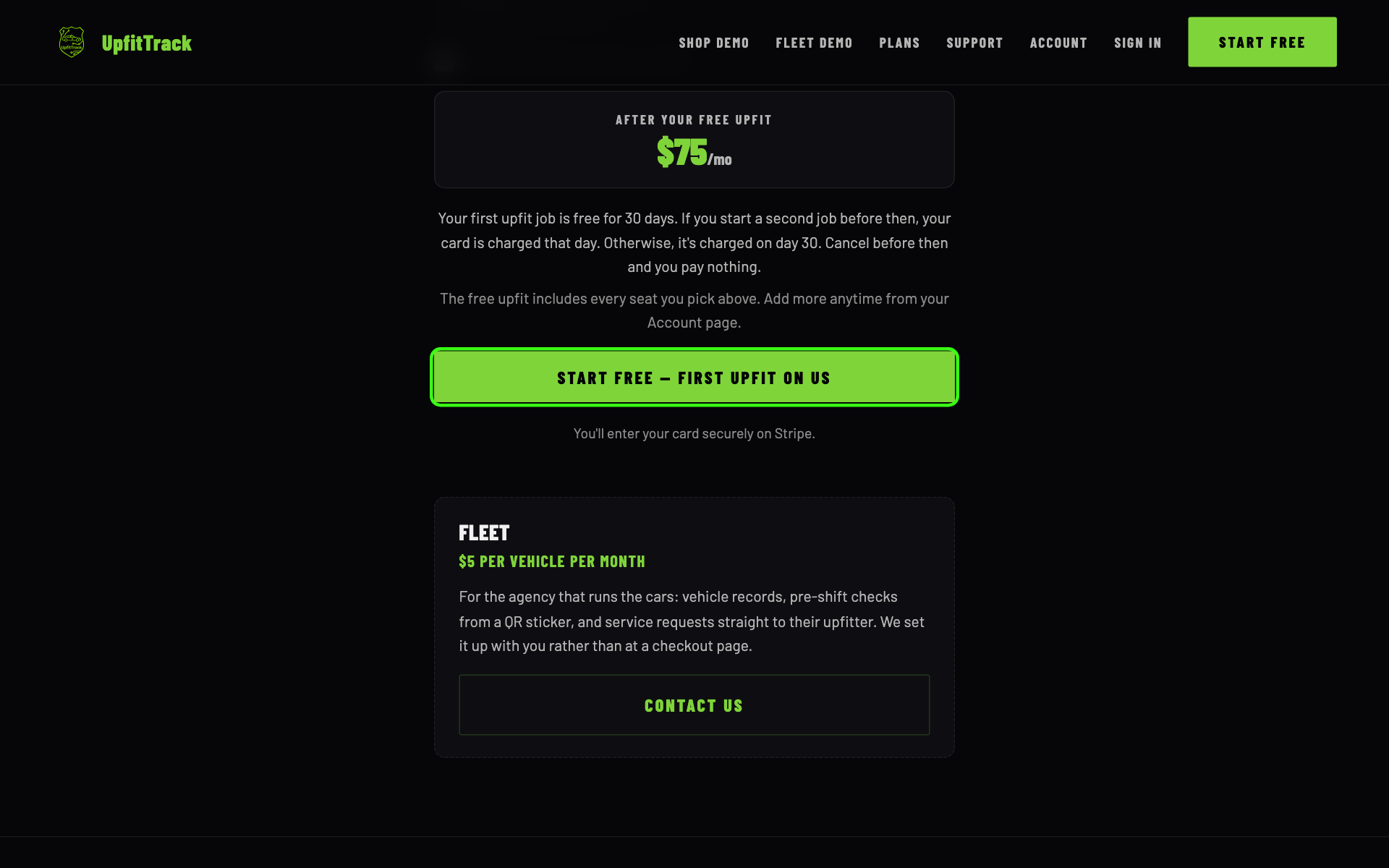
The total box reading $75 a month after your free upfit, the free upfit terms, the Start free, first upfit on us button ringed in green, and under it the Fleet box, $5 per vehicle per month, with a Contact Us button.
The monthly total, the free upfit* terms, and the button to the card step.
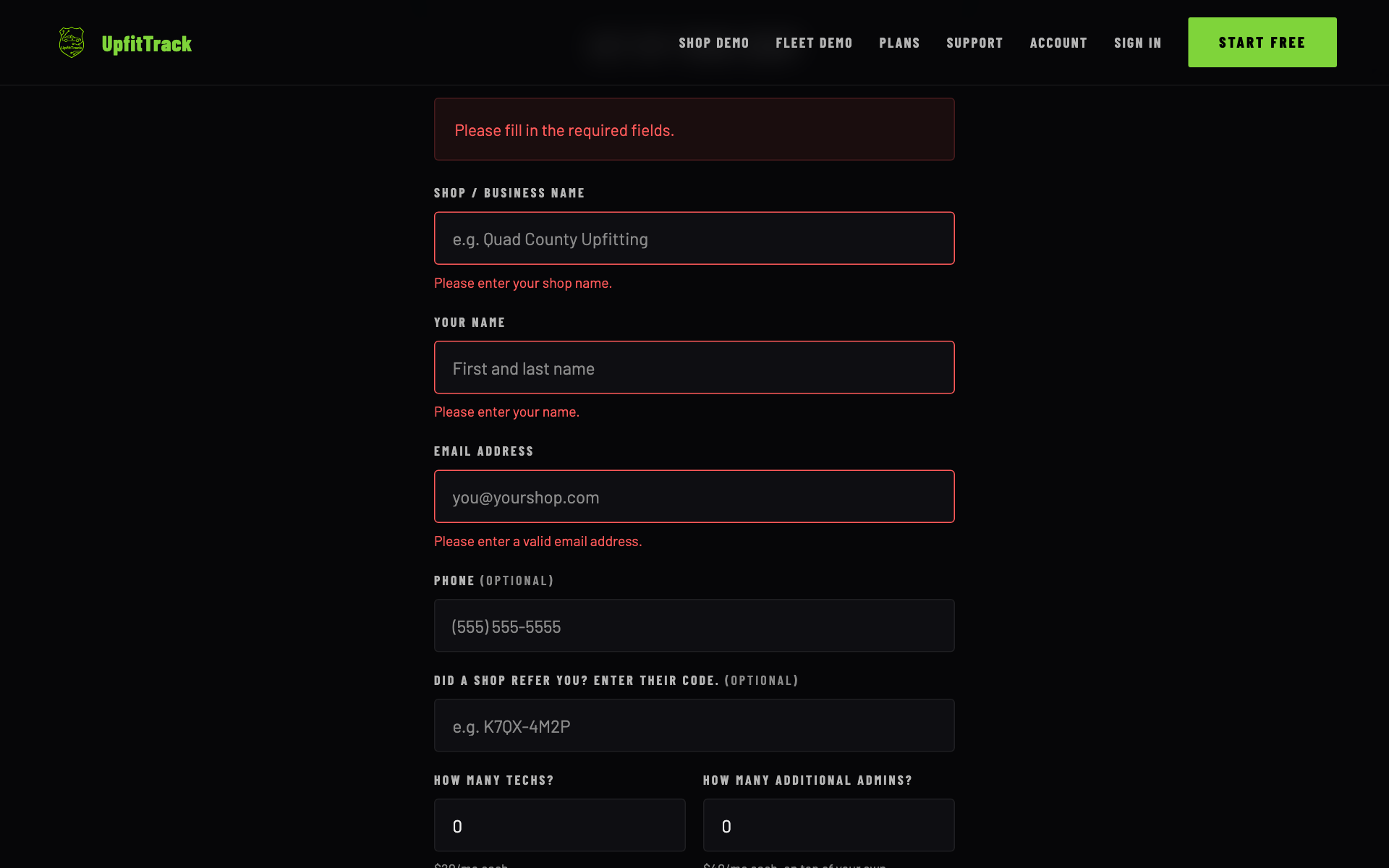
Left something out?If a required field is empty, the form doesn't go on. It turns the empty fields red and says "Please fill in the required fields."
The form after pressing the button with nothing filled in: a red message, Please fill in the required fields, and the three required fields outlined in red, with Please enter your shop name, Please enter your name and Please enter a valid email address under them. Phone, the referral code and the crew size boxes are untouched.
What you see if you press the button with the required fields empty.
From the home page to a filled-in form: 2 techs and 1 extra admin come to $155 a month.
3

Know how the free upfit* works

You get to run a real job through UpfitTrack before you pay anything. Here's exactly when that ends.

Your first upfit is free*. Your card is charged when you start your second job, or after 30 days, whichever comes first.

"Starting your second job" means starting a second upfit in the app (Upfits › Start New Upfit). Your first upfit counts even if you delete it later.

You give your card at signup, but nothing is charged that day. Cancel before then and you pay nothing.

The free upfit* covers every seat you picked on the form, so your techs and extra admins are free during it too.

One free upfit* per shopThe free upfit* is for a first signup. If your email is already the billing or contact email of an UpfitTrack shop, there's no free upfit: you're charged the day you sign up. An email that already has an UpfitTrack login can't start a new shop at all (see "Your email already has an UpfitTrack login" near the end).
4

Enter your card

The card holds your spot and starts billing when the free upfit* ends. Stripe, our payment company, handles the card. UpfitTrack never sees your full card number.

After you click the button, the form is replaced by a card step on the same page. It shows your shop name and a summary:

HeadingFirst upfit (or 30 days) free, with the line "Nothing is charged today."
The linesUpfitTrack Base, then tech seats, admin seats and extra locations if you picked any, each with its monthly price.
Then each monthWhat you'll pay monthly.
Due todayWhat's charged now. With the free upfit*, that's $0.00.
Card fieldsYour card details. These come from Stripe.
  1. Enter your card and click Start my free upfit. It says Processing... while it works.
  2. Need to change something? Click ← Edit details to go back to the form with what you typed.
No free upfit* on this email?Then the big heading on the card step says UpfitTrack Base instead of First upfit (or 30 days) free, and the small line above it says Your plan instead of Your free upfit. The line under it says "You're charged … today", Due today shows the full first charge, and the button says Subscribe.
Card declined?You see Stripe's message, for example "Your card was declined." Check the card and try again. Nothing is set up until a card goes through.

If your browser couldn't load Stripe at all, you're sent to Stripe's own checkout page instead. It asks for the same things. If the card fields start to load on the page but fail, you see "Couldn't load the card form. Try again." Click the button again.

There's no picture of this step. Stripe runs it, and it only works on the live website.

5

Right after you pay

Your shop is built for you the moment the card goes through. You don't wait on anyone.

The website shows You're In. and tells you to check your email to set your password.
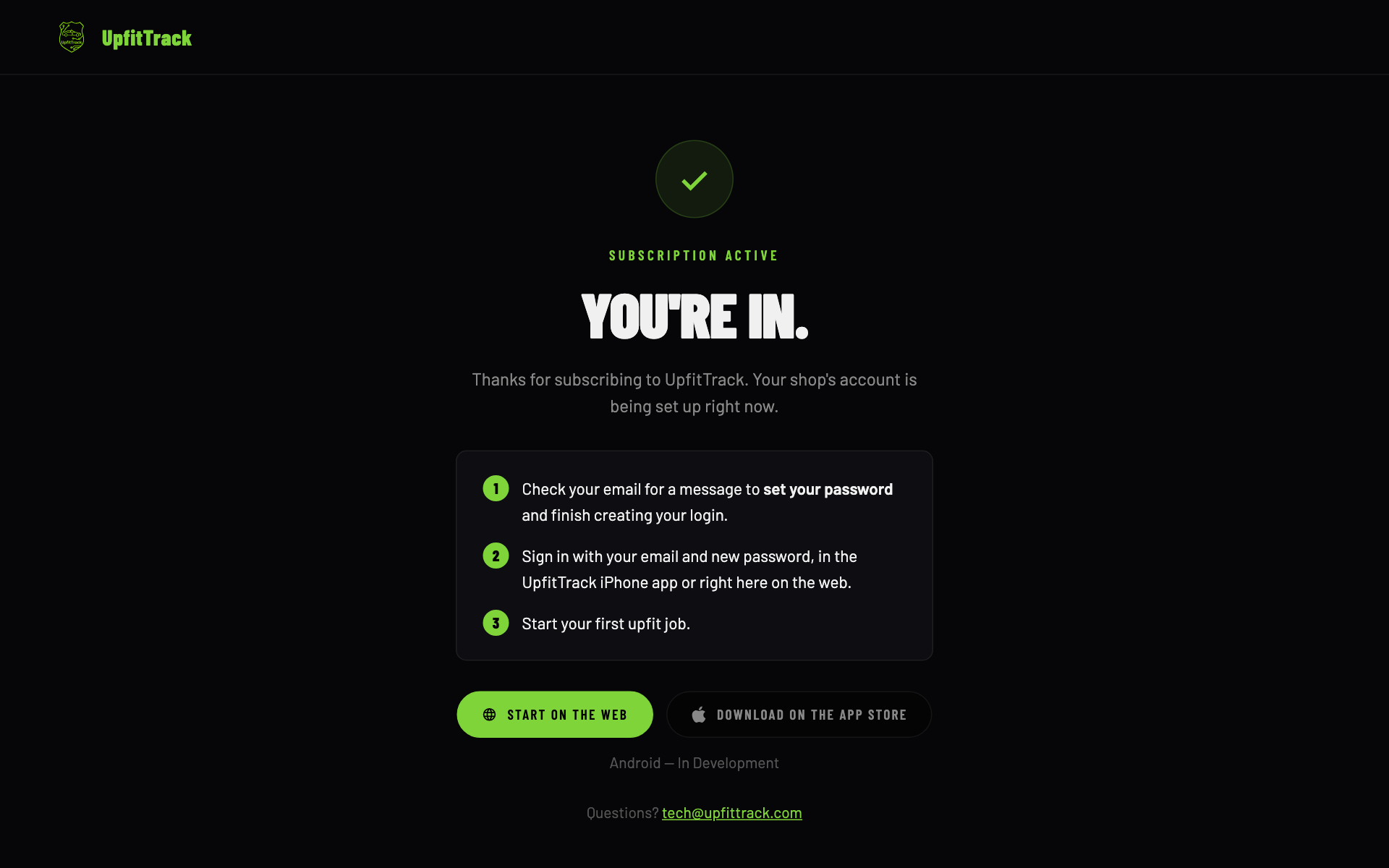
The page after paying: Subscription Active, You're In, three numbered steps (check your email to set your password, sign in, start your first upfit job), buttons Start on the Web and Download on the App Store, a line Android, In Development, and Questions? tech@upfittrack.com.
The page you land on after paying.

What's made for you

  1. Your shop, with the name you typed.
  2. One location, named "main". You'll rename it in Chapter 2.
  3. Your login, as an Admin, using the email you typed.
  4. A login for each extra admin you typed in (Step 6), and any extra locations you named.

The welcome email

Then an email arrives from UpfitTrack <support@upfittrack.com> titled "Welcome to UpfitTrack — your shop is ready".
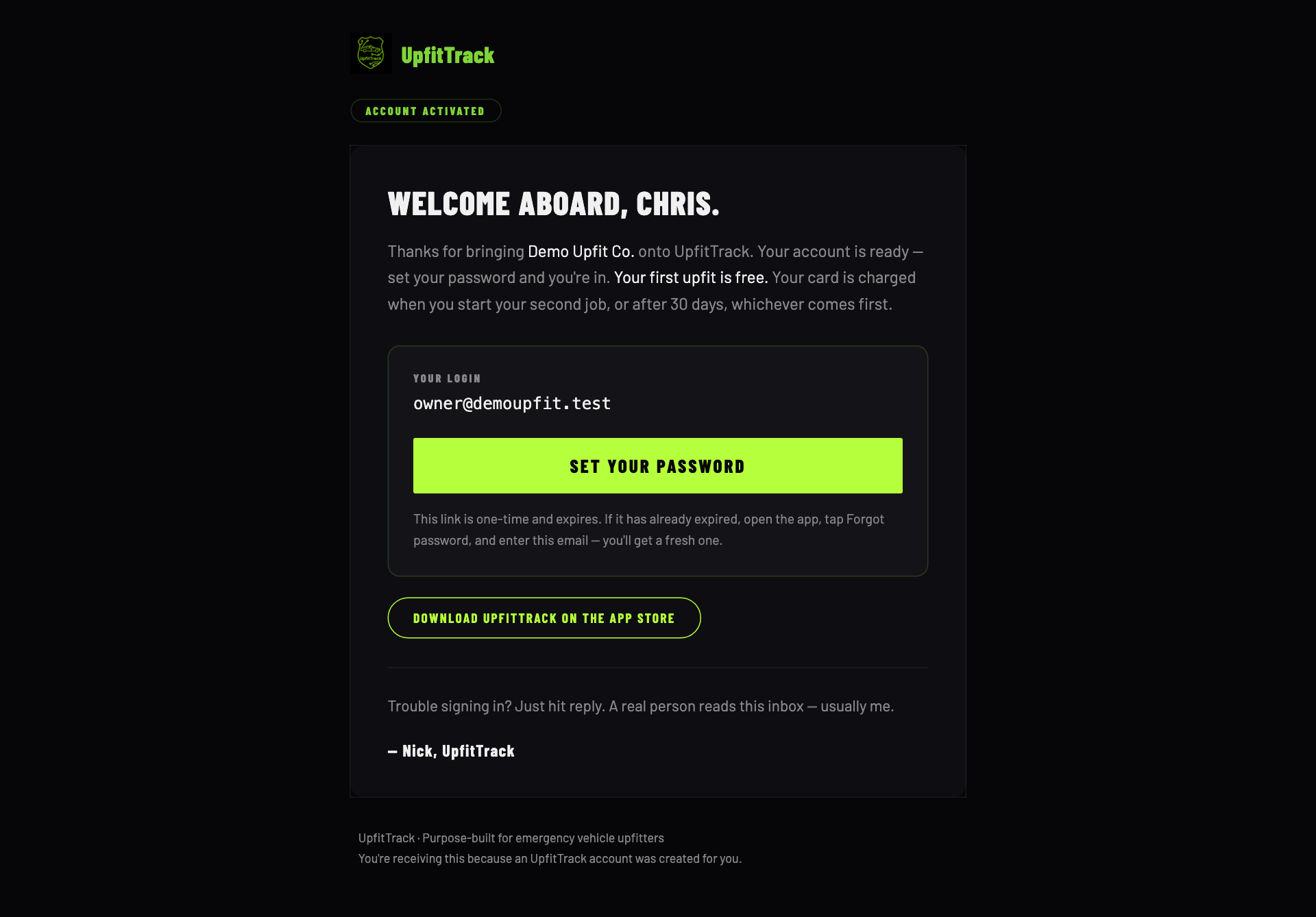
Your loginThe email you sign in with.
Set your passwordThe button that lets you choose your password (Step 7).
Download UpfitTrack on the App StoreOpens UpfitTrack on the App Store.
Trouble signing in?Reply to the email. A real person reads it.
The welcome email for Demo Upfit Co., in a column down the middle: Account Activated, Welcome aboard, Chris, the free upfit line, a box with the login owner@demoupfit.test, a Set your password button and a note on what to do if the link has expired, an App Store button, and a note from Nick.
The welcome email, shown for the made-up shop "Demo Upfit Co."
6

What your extra admins get

Anyone you typed in as an extra admin gets their own login straight away, so they can help set up the shop with you.

Each one gets their own email titled "You've been added to your shop on UpfitTrack". It says you added them as an admin, shows their login, and has the same Set your password button.

They sign in as Admins at your main location, and they get any extra locations you named too.
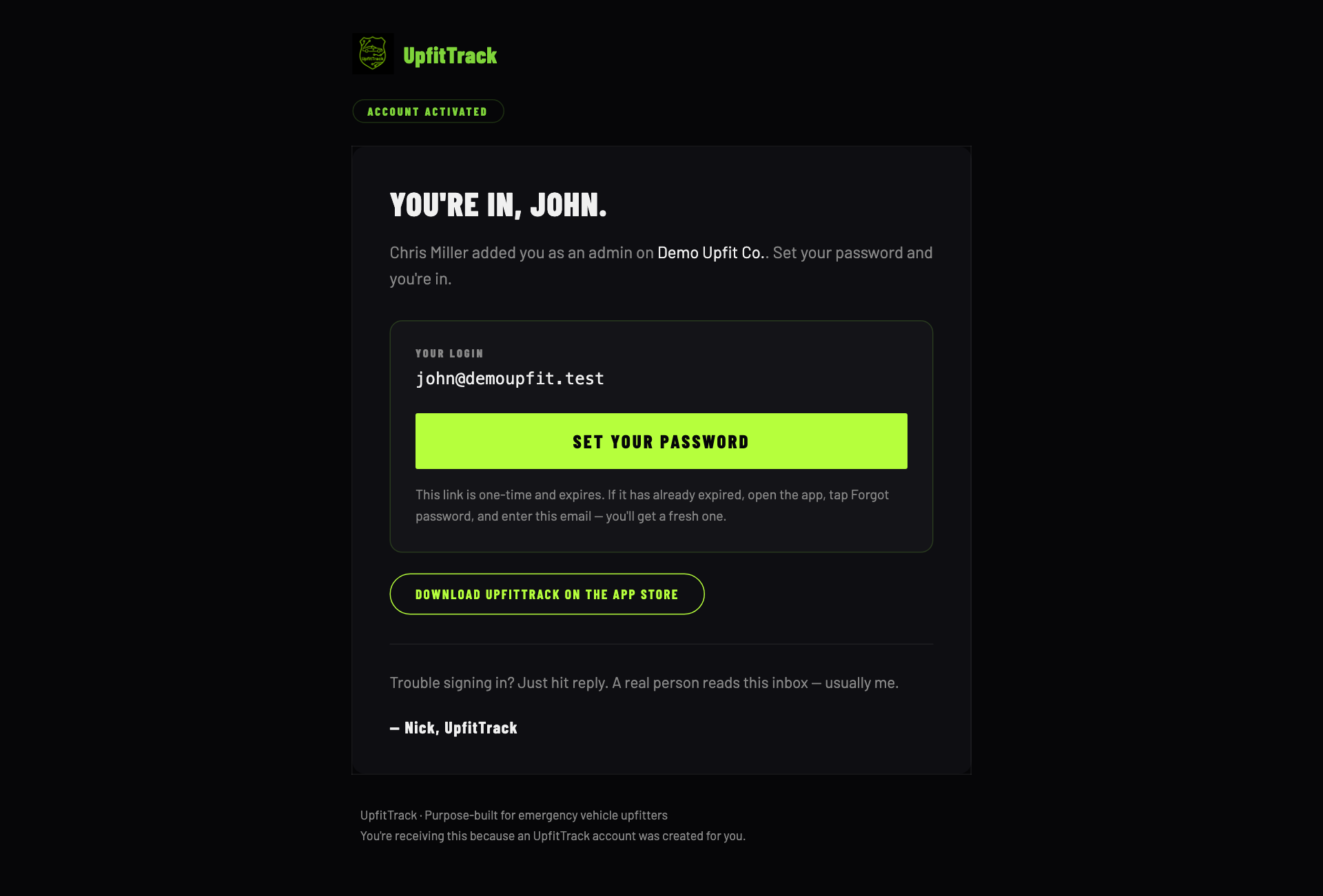
The added-admin email, in a column down the middle: You're in, John. Chris Miller added you as an admin on Demo Upfit Co. A box with the login john@demoupfit.test and a Set your password button, then an App Store button and a note from Nick.
What an extra admin receives. Here, Chris Miller added John.
Someone didn't get a login?If you ticked "I'll add this admin later", no login is made for them. Their seat is still yours. You can add them yourself, on the iPhone app or the web app, in Users & Access (Chapter 2, Step 4), but only while a tech seat is free too: the + that opens Add User is grey whenever every tech seat is taken, even with an admin seat free. With a tech seat free, Add User offers Admin. They're emailed a link to set their password, or on the web you can set them a starting password instead (Chapter 2, Step 4). If your tech seats are full (or you bought none), add a tech seat first, or email tech@upfittrack.com and we'll add them for you.
7

Set your password and sign in

Your account already exists. The only thing missing is a password only you know.

  1. In the welcome email, tap or click Set your password. A page on upfittrack.com opens, titled Set your password, with your email shown under Account.
  2. Type a password in New Password (at least 8 characters) and again in Confirm Password. Tick Show password to check what you typed.
  3. Tap or click Save password. The page says You're set and offers Start on the Web and Open the App Store.
  4. Open the UpfitTrack app on your iPhone, or app.upfittrack.com on a computer. Enter your Email and Password, then tap or click Log In.

The iPhone app and the web app use the same login.

The password page needs the live website to check your link, so it isn't pictured here.

8

When something goes wrong

Three things trip people up. Each has a quick fix.

The password link doesn't work

The link in the welcome email works once, and it expires. If it's used up or expired, the page says Link no longer works.

  1. Open the app and tap Forgot Password? under the Log In button. The web app has the same link.
  2. Check your email in the Reset Password box and tap or click Send Reset Email.
  3. An email titled "Reset your UpfitTrack password" arrives. Tap or click Choose a new password. This link also works once, and expires in an hour.
Pressed it twice?Only one reset email goes out per minute, and at most five a day. Each new one replaces the last, so always use the newest email.

No email arrived

  1. Check your spam or junk folder for mail from support@upfittrack.com.
  2. Still nothing? Use Forgot Password? in the app with the email you signed up with. It works for a brand-new account too.
  3. If that doesn't arrive either, email support@upfittrack.com. If our welcome email ever fails to send, we're told, and we can send you the link by hand.

Your email already has an UpfitTrack login

Each email can only have one UpfitTrack login. If the email you type for yourself already has one (for example, you were a tech at another shop), the signup stops when you click Start free — first upfit on us. The card step doesn't open and nothing is charged. This shows under your email:

This email already has an UpfitTrack login.Use a different email for your new shop, or contact us at tech@upfittrack.com.

The message goes away as soon as you change the email. Type a different one and click the button again.

The same goes for an extra admin. If their email already has a login, the message shows under that admin's email and ends "Use a different email for this admin". Type a different email for them, or tick I'll add this admin later.

Your email already belongs to a shop

If your email is already the billing or contact email of an UpfitTrack shop (for example, your shop signed up before), you can still sign up, but there's no free upfit*. At the card step the big heading says UpfitTrack Base (not First upfit (or 30 days) free), the small line above it says Your plan, Due today shows the full first charge, and the button says Subscribe.

See "UpfitTrack Base" and "Your plan" when you expected "First upfit (or 30 days) free"?Stop before you pay. Click ← Edit details and use a different email, or email support@upfittrack.com.

Charged but never got a shop or a welcome email? Write to support@upfittrack.com with the email address you used. We're told automatically when that happens, and we'll link the payment to a shop or refund it.

That's the end of signing up. Chapter 2 walks you through setting up your shop, from the home screen to your first car.